Windows
64-bit Windows 10 or 11.
Install with the launcher.
Windows · Mac · Android · Steam Deck
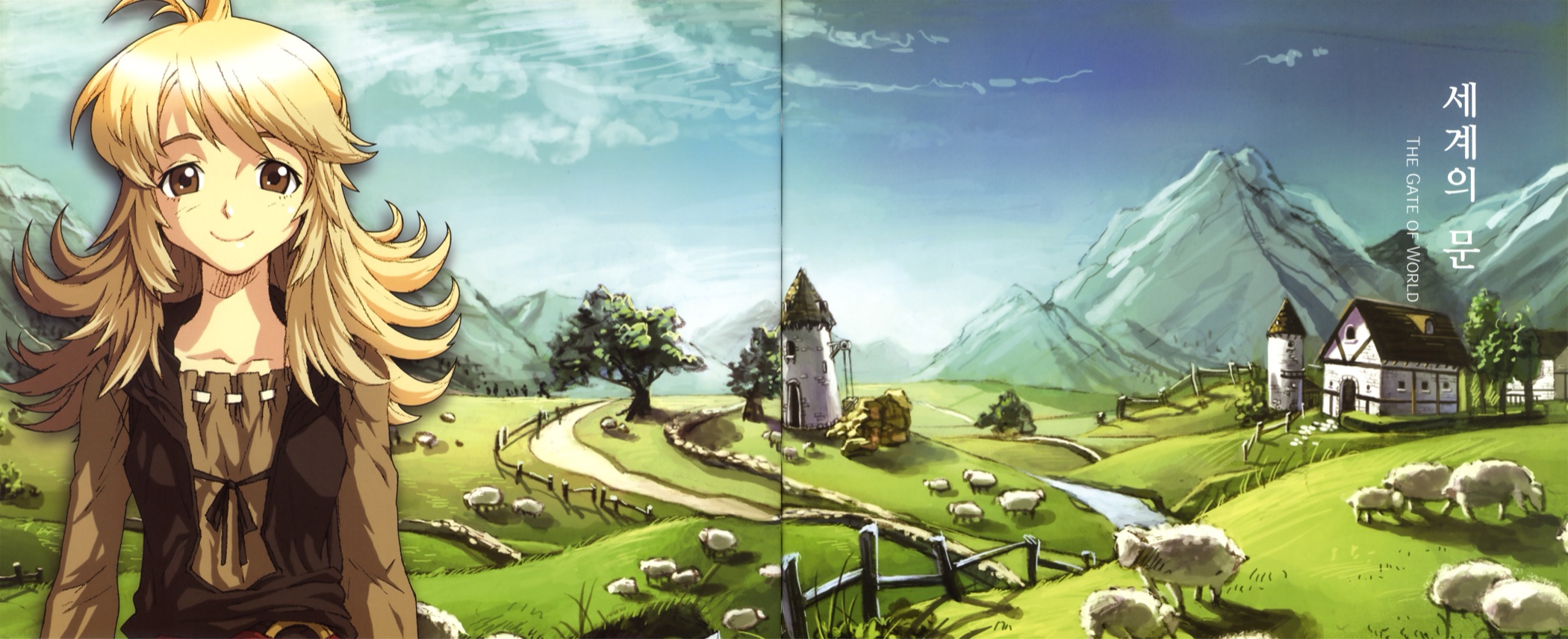
The client is the game you install to explore Ragnarok Online 2: The Gate of the World. Rebuilt from the recovered 2007 source code, it now brings the world to Windows, Mac, Android and Steam Deck.
Pick your device
You need an accepted alpha login first. Request access, then create your game login on your personal status page when you are accepted. Your download links are on that page too. Mac and Android use the same server, login and characters as Windows.
64-bit Windows 10 or 11.
Install with the launcher.
Apple Silicon, macOS 26+.
Drag the app into Applications.
64-bit Android, Vulkan 1.3.
Install the Android app.
Windows version via Proton.
Add the launcher to Steam.
Step by step
Use Windows 10 or 11 (64-bit), a graphics card with DirectX 9 support and about 15 GB of free disk space.
The game takes about 10 GB. The launcher keeps it up to date.
You need an Apple Silicon Mac (M1 or newer) with macOS 26 or newer. Keep about 15 GB free while it installs. The game takes about 10 GB.
You need a phone with 64-bit Android and Vulkan 1.3. You can play with touch controls or a controller. It has been tested on the Galaxy Z Fold.
Play the Windows version through Proton.
The Steam Deck setup guide walks through every step. Steam Deck setup is on your own; ask other players in Discord if you get stuck.
The Mac version is new. Some trees are not drawn yet. If left clicks feel stuck, close apps that change how your mouse or keyboard works, such as Magnet or Hyperkey. A Mac update can arrive later than Windows; the launcher shows “Mac update coming” until it is ready. See the Mac announcement for more help.
The Android version is new. If something does not work, please send a bug report. Read the Android announcement.
Inside the client
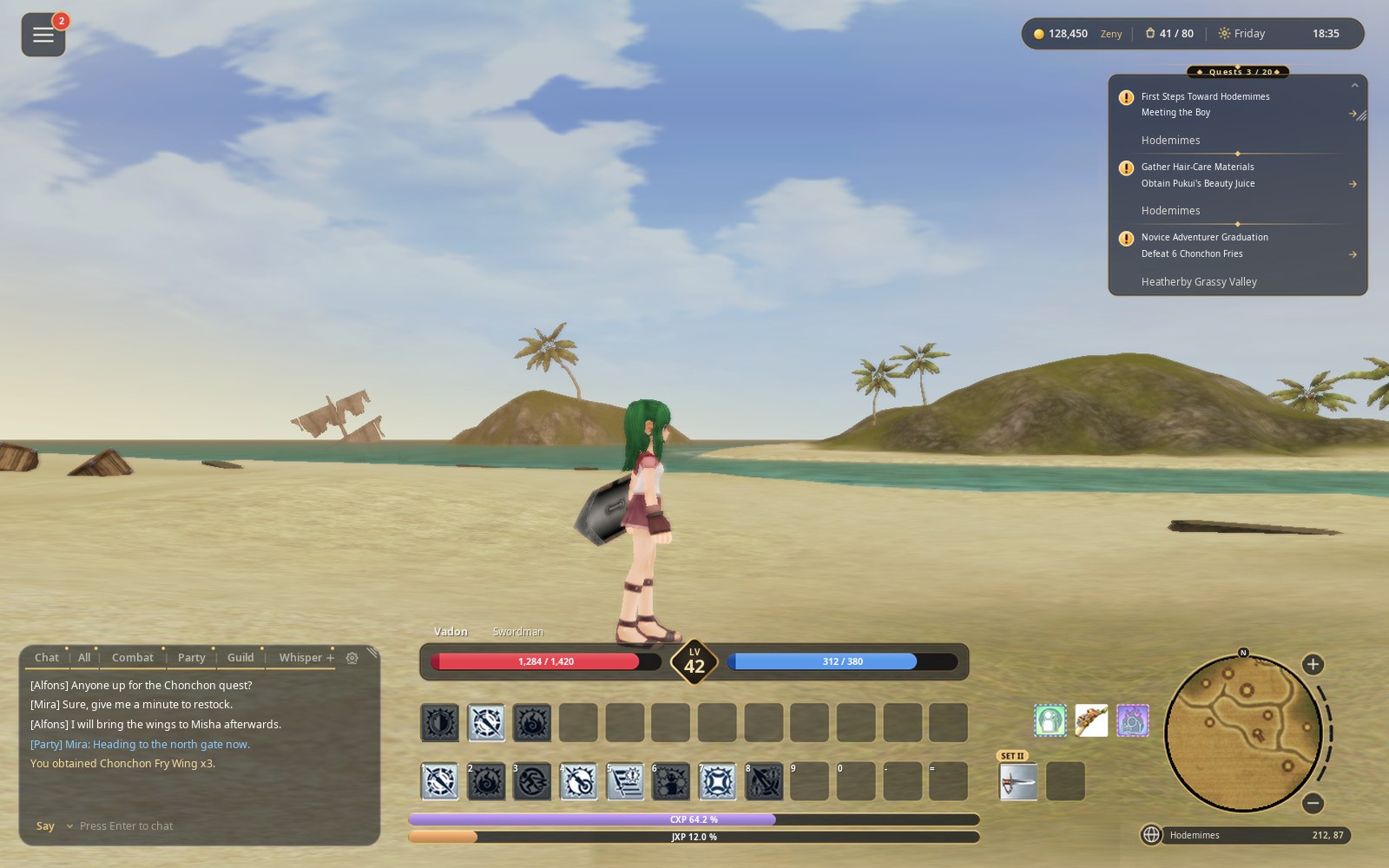
The move to 64-bit removes the old memory limit. Opening your bag no longer brings the old stutter, and effects are prepared while the map loads.
Optional HD textures are available in Video settings. The launcher supplies the client update; on Windows, you need a 64-bit version of Windows.
For more about how the game was rebuilt, visit Behind the remake.
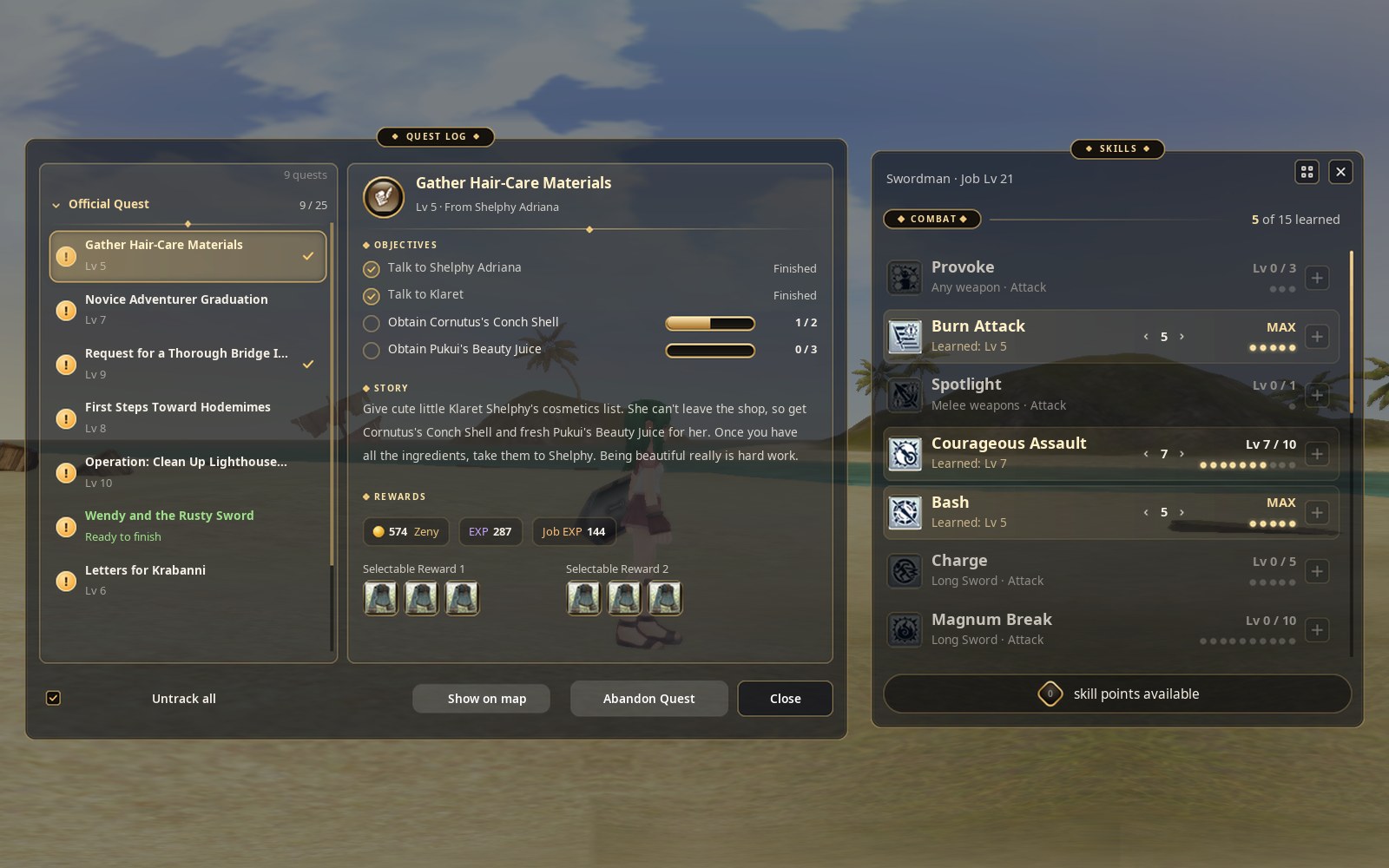
Game windows now have clear glass and gold edges. Text is sharper and bigger. The Skills window and Quest Log are easier to read, and every skill tooltip shows a table of all its levels with your own level in gold.
Choose your screen size and set interface scale from 100 to 200%, or let Auto choose it. The combined Character window keeps your gear together; Audio, Game and Video settings have been reworked too.
The Community window (P) holds your party, friends, guild and blocked players. Chat messages can hold 120 characters, and World chat lets you keep in touch. You can link items in chat.
More windows: Talents (Shift+T) with 4 Augstone sockets at the top, Professions (B) and Achievements (Y).
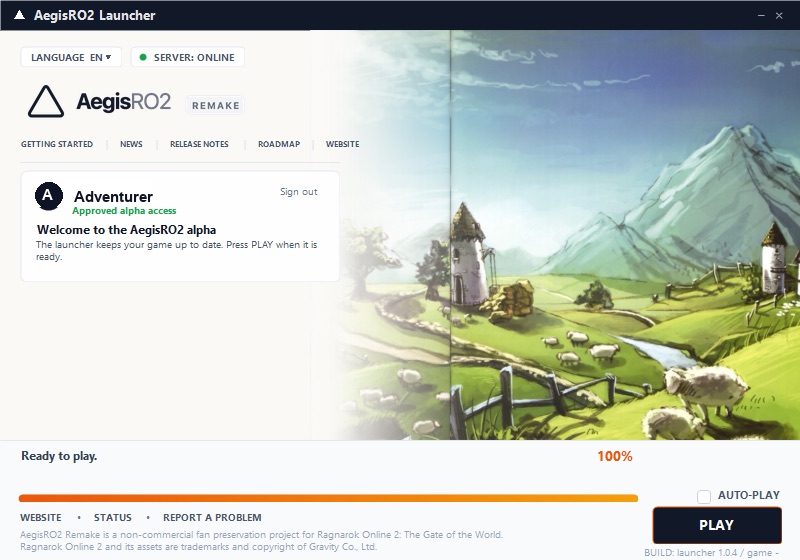
Log in with your game account, let the launcher finish downloading or updating the game, then press PLAY. It keeps the game up to date and updates itself. If a new update is out and your launcher is already open, close it and open it again.
Use “Report a problem” in the launcher to send us your game log. You can read what changed in the latest news.
Enable “Use a game controller” in Game settings. Move with the left stick and turn the camera with the right. Hold L2 or R2 for the cross hotbar, and use the D-pad to move through open windows.
You can use an Xbox-style pad on Windows. On Steam Deck, pressing A on a text field opens the on-screen keyboard. On Android you can play with touch controls or a controller.
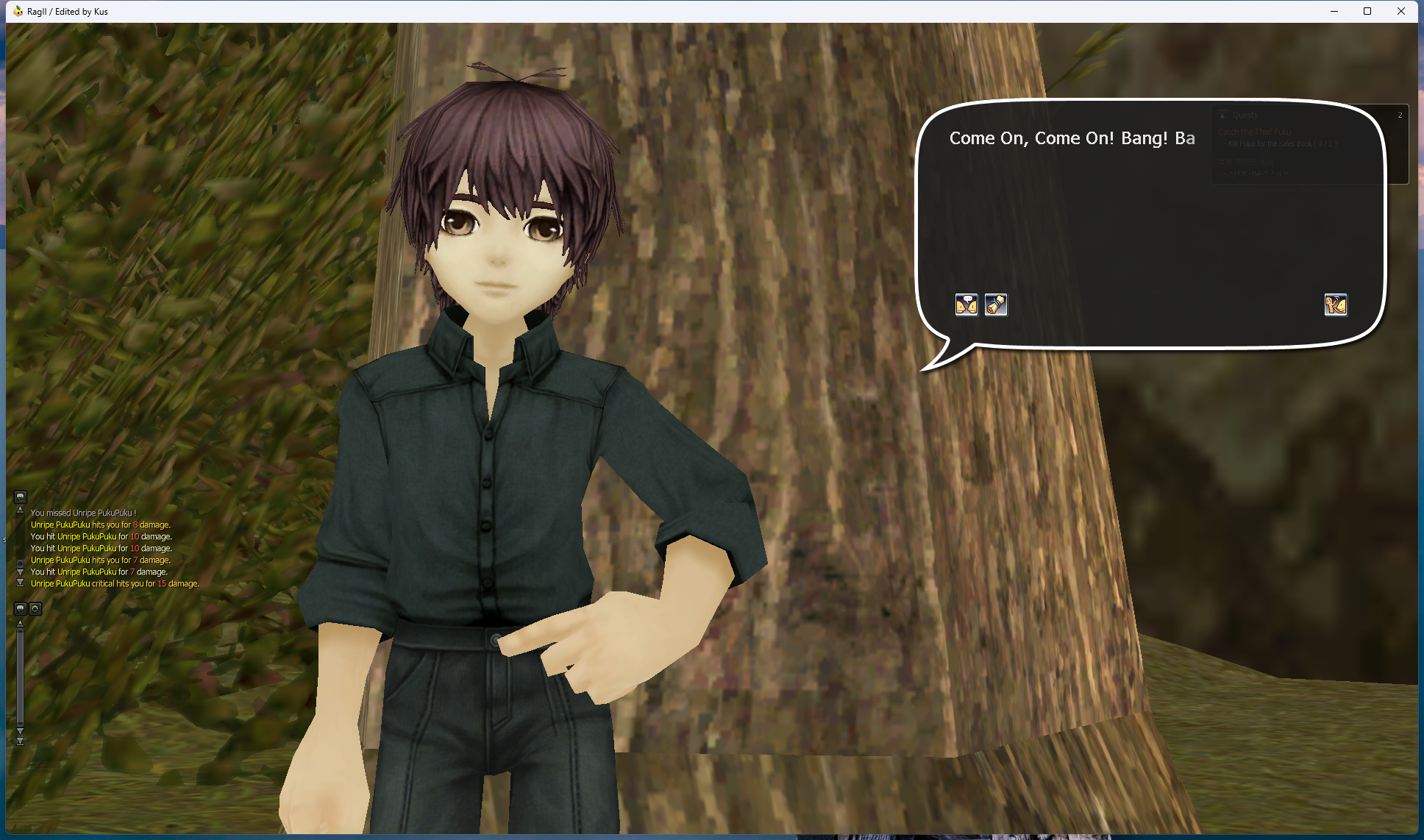
Choose English or Korean in the game options. NPC talk and quest-log texts have new English translations from the Korean originals.
The quest log holds 50 quests, with six tracker rows on screen. NPC markers, map pins and a gold arrow show the next step. Characters, monsters and objects appear sooner when you enter a map, and scenery is visible from further away.
Prefer the 2006 look? Switch its textures, music, glow and camera on in Video settings. Gear with a matched 2006 texture uses its old look too. Explore more on the Features page.
Start with Getting started, Download and setup or the FAQ. For a problem with the game, use “Report a problem” in the launcher. You can also ask us and other players in Discord.